Enterprise Grade Accessibility for Everybody
Accessibility as Good Business: Laws, Customer Demand, and Talk Overview
The speaker from Atlassian frames accessibility as both a legal obligation and a business opportunity, citing the European Accessibility Act, US Section 508, and Australia's Disability Discrimination Act. He explains that enterprise customers actively request VPAT documents before purchasing, and acknowledges upfront that accessibility is genuinely hard—referencing Sheri Byrne-Haber's observation that first attempts will be awful. The talk is structured around three categories: automated tooling, knowledge sharing, and expert input, with the recurring theme that doing one small thing is always better than doing nothing.
Automated Tooling: Leveraging Testing Library for Accessibility
The speaker introduces Testing Library as an underused accessibility tool, recommending getByRole selectors over getByTestId to ensure interactive elements have proper ARIA roles and accessible names. He highlights a lesser-known accessibility signal: when multiple elements share the same role and name, Testing Library surfaces an error that exposes a genuine screen reader ambiguity—such as multiple undifferentiated episode links—that must be fixed in code rather than worked around in tests.
Automated Tooling: Linting Rules and IDE Plugins
The speaker covers two linting approaches Atlassian uses: the Deque Axe Accessibility Linter IDE plugin, which provides real-time inline feedback in VS Code for issues like missing alt attributes and links without discernible text, and a set of ESLint plugins—eslint-plugin-jsx-a11y and eslint-plugin-styled-components-a11y—integrated into the standard build pipeline. Using a Star Trek Lower Decks episode list as a running example, he illustrates how the IDE plugin catches errors immediately but only affects developers who install it, making the ESLint pipeline integration a necessary complement.
Automated Tooling: Axe in Unit Tests and End-to-End Testing
The speaker explains how Atlassian uses axe-core in Jest unit tests to catch structural HTML accessibility violations—such as a div rendered inside a ul by a child component—that linters cannot detect because they cannot trace component output. He extends this to end-to-end testing with Playwright and axe-core/playwright, noting that E2E tests cover issues like color contrast that require real CSS to evaluate, and that Atlassian also runs accessibility checks against Storybook stories and visual regression tests. A codemod automatically injects the axe check into all new test suites.
Semi-Automated Checks and the Limits of Automated Testing
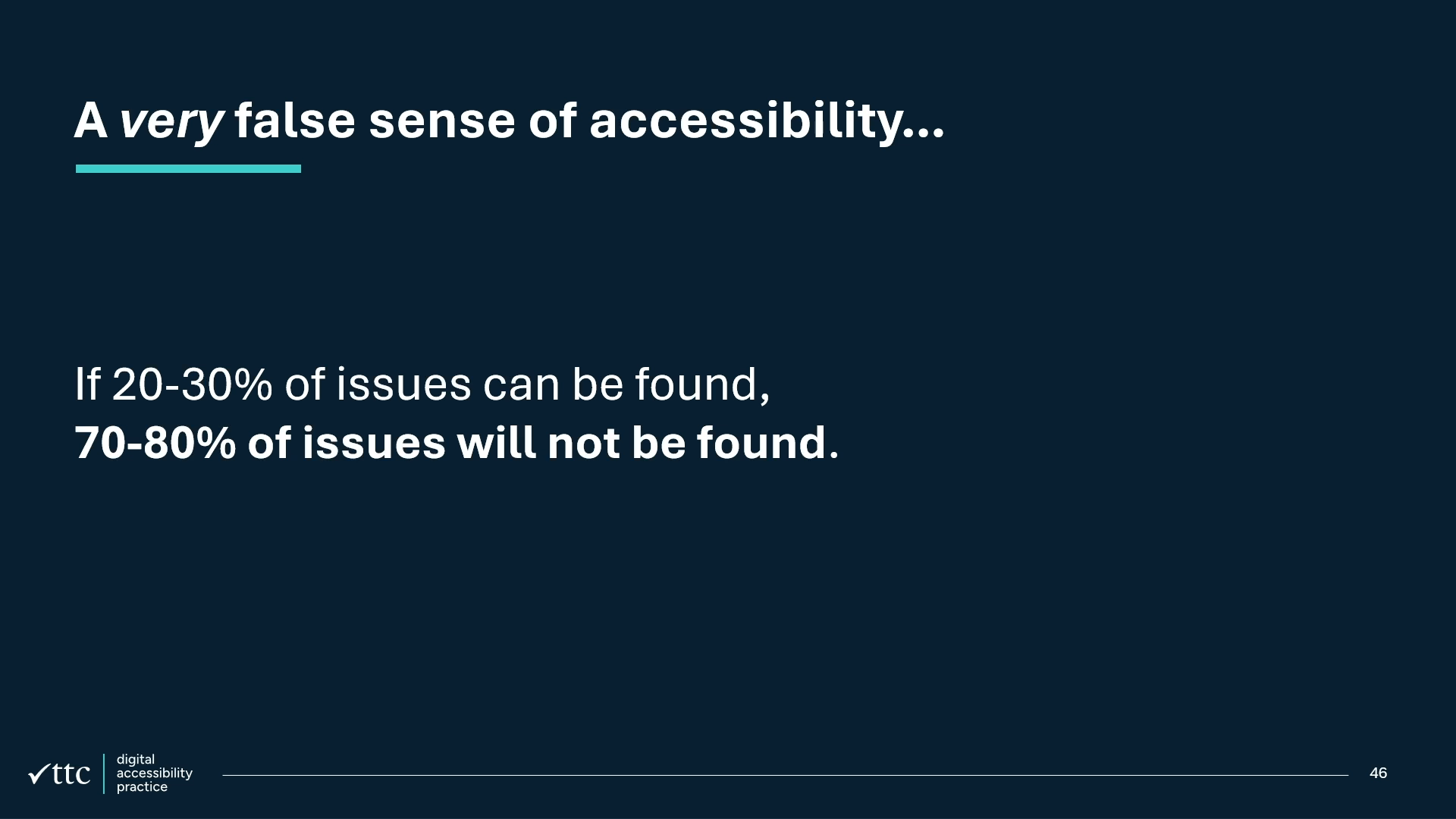
The speaker introduces semi-automated tools including the Accessibility Insights browser plugin, which combines automated audits with guided manual checks like tab order visualization and alt text review, and Atlassian's own design system, which ships accessible components out of the box. He then honestly contextualizes the entire automation layer: even Deque's own research claims only 57% issue detection, and Maya's prior talk put the realistic figure at 10–30%. The speaker explains that automated tools cannot reason about intent—they can flag a missing alt attribute but cannot determine what the alt text should say—and that accessibility must begin in design before code is written.
Knowledge Sharing: Corporate Training and the Accessibility Champions Program
The speaker outlines Atlassian's knowledge-sharing programs, beginning with corporate accessibility training that introduces different disability profiles and web interaction patterns, then moving to their accessibility champions initiative that aims to embed an advocate in every team. He offers practical advice for new champions: start with quick wins like ensuring inputs have labels, reduce friction by providing ready-to-paste code fixes rather than just identifying problems, and make screen reader testing approachable by first using browser dev tools accessibility trees in Firefox and Chrome. He argues that convincing the team's designer is the highest-leverage move, since one accessible design decision multiplies across every developer implementing it.
Scaling Accessibility Knowledge Through Figma Annotations, Wikis, and AI
The speaker describes how Atlassian uses Figma accessibility annotations to specify alt text, tab order, actions, and even specific HTML elements directly in design files—enabling developers to learn semantic HTML through implementation rather than instruction. He covers a Confluence knowledge base, a Slack channel staffed by the central team and senior champions, and their Rovo AI agent trained on the knowledge base to answer routine questions instantly across time zones. Formal office hours complete the picture, pairing a designer and developer from the feature team with counterparts from the accessibility team for face-to-face consultation.
Expert Input: Audits, Staff and User Feedback, and Conclusion
The speaker covers the third pillar of expert input from three sources: professional accessibility auditors who conduct WCAG audits and fuel VPAT documents, internal staff with disabilities who report issues through a dedicated portal with SLO-backed triage, and external users supported by accessibility-trained customer service agents who can engage without requiring users to explain what a screen reader is. He closes with a four-point summary—every small improvement matters, shift accessibility left into design, use automated tools as the starting point while recognising their limits, and get an expert audit to build a roadmap—and directs the audience to the slide link at a11y.ezed.codes.
Yeah. So at Atlassian, we take accessibility seriously. I'd like to say that's just because, you know, it's the right thing to do. After all, one of our core company values is don't fuck the customer. But, you know, we live in this late stage capitalist hellscape. So at some point, everything comes down to money.
The good, I guess, news is that accessibility turns out to be quite good for business. For a start, there's a bunch of laws that have potential financial penalties if you don't follow them. The European Accessibility Act comes into effect the June 20, which is quite soon for anybody who has anything in Europe. This just means that, basically, if you want to have your app available in Europe in the European Union, you need to meet the WCAG double a standard.
In The US, there is section five zero eight. I'm not sure it's a huge concern for the current administration, but I'm sure that they'll sort that situation out. And here in Australia, we have the Disability Discrimination Act, which basically says if you're if somebody is unable to access your website because of accessibility issues, then you are doing a discrimination and you're liable for that as Coles found out in 2018.
On top of that, though, like, our customers just want our stuff to be accessible. Our paying customers are by and large businesses, and businesses have employees. And some of those employees have disabilities, unless something has gone terribly wrong with your hiring process. But generally, employees wanna make sure that their staff are actually gonna be able to use our products before they commit to paying money for them. So we'll often just get, like, people send these questionnaires about, like, how accessible is your product.
To that end, we actually have a page that you can go and have a look at with all of our sort of accessibility road map stuff. You can report accessibility issues here, it's and got all of our product VPAT documents. So VPAT document is a voluntary product accessibility template. It's basically just a form you can fill in that describes how accessible your products are.
And we've got those for all of our flagship products up there, if you're interested. So today, what I wanna talk about is a bunch of things that we have done to get us to the point where we're at today and that we're continuing to do because accessibility is a journey and we are definitely not at our destination just yet, which something that I think that is worth acknowledging upfront is that accessibility is hard. Building a perfectly accessible app requires a really solid understanding of the technology involved and also how humans work and how humans interact interact with technology, and humans are hard.
In fact, in her book, Giving a Damn About Accessibility, Sherry Bernhaber says, your first attempt at making anything accessible will be awful, involved which is a pretty low bar. But that's okay. You're not gonna get this kind of thing right first go. The important thing is that you do something. So I'm sure that everybody remembers the homework that Maya gave us all yesterday, which was to go away and just do one thing.
Well, that's your homework again today. So good news, no new homework. The idea is here is that I'll go through a list of things that we do, and I'd love for you to find one of those things that you can do that you can then improve the accessibility of your product in one way. And if you can do that, you are making the world a better place. And, of course, once you've done one thing, then do another thing. Accessibility is a journey.
So the things I wanna talk about today, I've grouped into three different categories, and those are automated tooling, knowledge sharing, and expert input. So automated tooling is absolutely the best place to start with all of this kind of thing. These tools I'm gonna talk through are generally pretty cheap in terms of like, they're generally free as in beer.
They don't cost any money. And they're also relatively easy to just add to your existing workflows. They're not gonna add a bunch of time or require a large number of resources. They also don't require, like, knowledge or experience in accessibility to use them. They'll just report the violations for you. Sometimes they'll fix them for you or they'll just tell you how to fix them. So this is the perfect place to get started to get people starting to get exposed to, like, accessibility ideas.
And if you've already got some of these, then maybe expand and add a few more. So the first tool that I wanna talk about is something that you are probably already using, and that's the testing library that's named Testing Library, which is either a brilliant name or the worst Google thing ever. The Testing Library comes with a bunch of features that encourage you to test your application as if you were a user interacting with it. And some of them are even, like, specifically a screen reader user. So if you are trying to select in your test, you're trying to select any kind of interactive element, like an input or a button or something more complex, like a modal or a tab, I would highly encourage you to prefer the by role selectors, get by role, query by role, and find by role, as opposed to something like get by label or get by test ID, the worst selector. Also, get by role allows you to pass in an ARIA role and an accessible name.
So this is a really quick and easy way to check that all of your interactive elements have both an ARIA role and an accessible name. It can't, like, tell you whether they're the right role or the best name, but like I said, baby steps, baby steps. There's also another sort of I feel like it's like a hidden accessibility feature in testing library that isn't advertised as one, but it kind of is. And that's this error here.
So if you've ever seen this kind of error where you found multiple elements with the role something and the name whatever, this is telling you that there's a bunch of elements on your page that have the exact same role and name, which means that they look identical to a screen reader. Right? There's no way to tell them apart.
So that's okay if they're actually doing the same thing. But if they're not, like in this episode here, we've got a link that's gonna play an episode. Screen reader doesn't know which episode. Like, there's no way to tell them apart. So this is an accessibility issue that needs to be fixed in your code, not something that can be fixed by doing get all by alright. So the next thing I wanna talk about is linting.
At Atlassian, we use two different linting tools. The first is DexAxe Accessibility Linter. So this one is actually an IDE plugin. It's free for Versus Code or there's a paid version for JetBrains Suite. I guess they figure if you can afford a JetBrains subscription, you can afford a plug in. So this one is just gonna you add it to your your IDE. The way this is gonna work is imagine we have this list of episodes from Strange New Worlds.
No. This is from lower decks, the best Star Trek season. And at the end of each one, there's a link that's gonna take you to to play the episode. The HTML looks like this, so we've just got a link with an image inside of it. If we write this in our IDE with the plugin installed, then we're gonna get an error like this, which is gonna tell us that the link must have discernible text and also that the image needs to have an old attribute.
And if you add the old attribute to the image, then it'll fix both errors. It's smart enough to do that. So the nice thing about this is that it is just an IDE plugin. You can add it to your IDE, hopefully, without needing to ask anyone's permission, and you can just start checking accessibility straight away. The downside to this is that it's just an IDE plugin.
So unless you can commit to everyone else on your team to to also install it, I guess you're the only one checking accessibility. And also, like, it's not part of any build pipeline. So it's only making you fix things by the power of red squiggly lines, which I personally find quite powerful, but I've discovered not everyone does. So on top of this, we also use just, a standard set of linting rules that just get added to our normal lint process. The ones we use are called this.
Don't bother writing that down because it's only available internally. So the good news though is that this is just a collection of a bunch of existing lending rules from other libraries and some internal stuff that's only relevant to our design system. So we we're essentially using ESLint dash plugin dash j s x dash a 11 y and ESLint ESLint dash plugin dash style dash components dash a 11 y.
So if you're using React with start components, this is a good place to start. If you're using something else, just have a Google or, I don't know, ask chat GPT or something. However, people are finding things on the web these days. But if you ask chat GPT, make sure that you're not ending up with some something that's being slop squatted.
Yeah. So you can just grab those, add them to your existing build system, and great. We've got linting. Right. So the next thing we do, we have sort of like a defense in-depth layers layered approach here. So the next thing we do is we have automated checks in our unit tests. And the reason no. Yes. We have automated checks in our unit tests.
The tool that we use for this is just axe. This is just an NPM module. You can grab it. I promise it's real, Which is based on an another library called axe core, which is created by deck. Axe core is an accessibility engine. So what it does is basically you feed it HTML and it spits out accessibility violations.
Well, hopefully, it doesn't if you everything's working great. So this is the same engine that the linting rules are using, but the reason that we use both is that there's a bunch of stuff that the the linter can't pick up. So for instance, here, we have the code for our episode list. We can see that it is returning a UL because semantic HTML is best HTML, and then a list of this component.
And if we look at this component, we can see, uh-oh, it's returning a div. That's not a valid child of a UL, but which is, like, invalid HTML, but it's also an accessibility issue because we're losing the the semantics there. Unfortunately, the Linter doesn't know what's going on here.
It can't tell because it doesn't know what this component is gonna render us, and it doesn't know where this div is gonna render, so it can't help us. We can, however, write a test that will pick this up. And I mean, other issues as well. So to do that, we're going first import axe, which is our engine, and to have no violations, which is our it's a Jest expect. So we can add that to Jest.
Probably wouldn't do this in every test file. You wanna do it in a setup file somewhere. And then we can just write our test. And this particular test is going to render our component. It's a React component rendering with the testing library. This will work with anything though that renders HTML. So it won't work with enzyme. And if you're still using enzyme, you can add that to the list of reasons why you should stop.
And then we're just gonna pass that HTML into axe. It's gonna analyze it, and it's gonna tell us whether we have any violations, which we do. We can see that we expected the HTML found out dollar u l, bit of old school jQuery notation there for you, to have no violations. But in fact, we received UL and OL must only directly contain LI script or template elements.
I am regretting not wearing my glasses right now. And there's a link there for more information if you need it. Right. So then on top of the those automated checks as well, we have a code mod that we use that just sort of adds that test automatically to all of our test suites. We So kind of get this automatically just by default.
Then on top of that, we also run tests against our end to end stuff. So we run Cypress and Playwright tests in, like, full environments with back end y stuff. We also run the Playwright test against our Storybook stories, and we can even run accessibility tests against our visual regression tests. We do most of these with Playwright.
So the library we use for that is axe core slash playwright. And you can just add it to your usual playwright tests. We're just gonna navigate to your page. Then you can pass it into axe and it's gonna do the same analysis. And then it's gonna tell you spit out whatever violations there are. So you might ask, like, why do we need end to end tests when we already have unit tests?
And the answer is that, again, there are things that the unit test isn't gonna pick up that these end to s tests are. So for instance, if you're rendering if you're using Jest for your unit tests, it's rendering things using Jest DOM, it's not gonna render any styling information. Right? The CSS just gets thrown out. Whereas, if we're rendering this in Playwright, we have that styling information, so we can check for things like color contrast.
So yeah. Ideally, use all of these and you you're gonna get faster feedback with the limiting of the unit test, and you're gonna get more complete coverage with the end to end tests. Okay. There are also a couple of other, like, semi automated checks that we do. The first is a browser plug in called Accessibility Insights. So this is a plug in.
It unfortunately works in Chrome and Edge. So we're not gonna see it, I guess. And it works similar to things like Lighthouse where you can go in and just run an automated check. It will go through and audit everything and tell you which issues it's picked up. But then on top of that, it has this kind of manual mode where it will go will guide you through manual steps that you can check, that you can run.
So for instance, here, where I apparently switched to dark mode, this is checking the tab order on the page. So you can go through and tab, and you can see exactly how the tab order goes, and you can figure out whether that makes sense for your particular application. The tool won't tell you whether it's right or not.
You sort of have to use your own judgment, but it can help you figure that out. And then we can also do tests like this one where it's gone through and it's found all of the images on the page, and it's told you what the descriptive text for that image is, and then you can go through and manually check for yourself whether that seems right or not.
The other sort of semi automated tool we use is our design system. So the design system comes with a bunch of, like, prebuilt components that have accessibility built into them. So for instance, we have a a Stylable Select while we're waiting for that to get sorted in the platform That does all of the things that you might wanna do with check boxes and you can type in it and all that kind of stuff.
And this is all just gonna be accessible out of the box. This design system and the components are available publicly, but they're all so very highly opinionated about Atlassian branding. So unless you're writing code or a plug in for the access the Atlassian ecosystem, you probably don't wanna use this, but you might wanna have a look at it for a bit of inspiration.
And if you're not using a design system, you might wanna consider picking up, like, one of the third party headless design systems or something like Shaco JS, which often have a lot of the components with the accessibility baked in but without being opinionated about how your components are gonna look. Okay. So that's great. Perfect place to get started is automated tooling.
But so Deck, the company that made a lot of the tools that I just talked about, did a study showing that its automated testing identifies 57% of digital accessibility issues surpassing accepted industry benchmarks. So this is a study that the company did on its own tooling. So we might wanna take the results with a little bit of a grain of salt.
And they still only, like, claim that they find half of the issues. And if you're in Maya's talk yesterday, you know that the number is probably closer to 10 to 30%. So automated tooling is absolutely the perfect place to start, but it's not gonna get you the whole way. And there's a couple of reasons for that. First is that accessibility depends on context.
So the tools don't know what your intent is, so it's hard for them to work out whether you're doing it correctly or not. So as an example, your automated tooling can tell you that your image is missing an alt attribute, but it can't tell you what the contents of that alt attribute should be. And, no, I won't be taking any questions about using AI for generating that. The other issue is that accessibility begins with design.
These tools all run on code. Right? And if you're not thinking about accessibility until after you've started writing code, then it's already too late. You're never gonna be completely accessible. So at some point, you are gonna need to have people in the organization who know about accessibility and have this experience, and you're gonna need ways for them to share that knowledge and to disseminate it out across the entire organization.
And we have a couple of ways that we do this at Atlassian. So first of all, we have corporate training. So just like you do your how to bully people and your security training and whatever every every year, we also have accessibility training. This is okay. Like, it's a really good way to get people interested and exposed to the ideas.
We have a really cool intro training that goes through, like, showing different people with different accessibility needs and and how they interact with the web, which is really cool. But it's sort of less useful for getting people to actually implement this stuff day to day. Right? The way that humans learn is by repeated exposure to something. So you really need a way to, like, just have accessibility being built into everybody's day to day.
One of the ways that we did that is with our accessibility champions program. So our goal here is to have an accessibility champion in every team. And the role of that person is to be the one asking the questions. Like, if we build this like this, who are we excluding? Who are we leaving out? And also to be the person that people can ask questions to.
They don't necessarily need to know the answer, but they need to know who to go and talk to. So the requirements for being becoming an accessibility champion are basically that you need to show an interest in accessibility. So congratulations. You are all now accessibility champions. So your role now is to go back to your team and be the person asking the questions.
You know, you're getting into design reviews and asking, getting into, like, code sparring and asking, commenting on people's PRs, all that kind of stuff. There's three levels, by the way, of accessibility champions, so you can all look forward to moving up through the levels, I guess. There's a couple of things I would suggest as you're doing this to keep in mind.
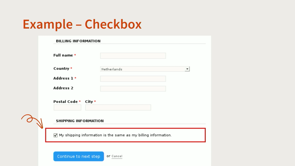
The first is to start with the low hanging fruit. Pick something that's gonna be easy and a quick win or something that's gonna be of particular interest to your team. So something that might be an easy quick win is could be making sure that all of your inputs have labels attached to them. Right? It's easy to pick up with automated tooling.
It's easy it's something that's usually pretty easy to fix, a good place to start. An example of something more complicated that might be of interest to your team could be if your team is full of, like, hardcore devs who, like, never touch the mouse, then keyboard accessibility could be a really good place to start. The second thing I would suggest is that you make things easy for people. So if you're commenting on someone's PR that their change isn't accessible and they need to do something differently, don't just tell them that they need to do something differently.
Give them the code. Let them just copy and paste it. Like, reduce the friction as much as possible. This also comes to testing things. In an ideal world, of course, we would all test everything with a screen reader before we release it. In this world, that that doesn't happen.
Right? Screen readers aren't intuitive. It can be hard to get people to be interested or to convince them that it's worth the time. And often, the screen reader that you as a developer have available isn't the same as what your users are using. So in an ideal world, yes, let's test everything with screen readers. But until we can convince people to do that, let's give them easy ways to test easier ways to test things.
So for instance, if you wanna test that your inputs all have labels attached to them, you can test that by clicking on the label. If you click on the label and it's attached correctly to the input, the input will receive focus. There's also a bunch of things that you can just check-in the dev tools. So on the this side is Firefox.
So there's just an accessibility tab in the dev tools that you can go and check. It's got the accessibility tree there. You can go through and have a look at the roles and names of all of your elements. In that side is Chrome. So underneath the elements tab, there's then a sub tab that's accessibility that's always squished off to the side because it's, like, too small.
But you can go in there, and it's gonna have the accessibility tree and a whole bunch of other information. So you can start looking using this to check some accessibility things. Like, at some point, you still need to check things with the screen reader, but this is a solid start. The third thing I would suggest is that if there's only one person one other, sorry, person in your team that you can convince to care about accessibility, try and make it the designer.
Like I said, we wanna shift accessibility left. We wanna start thinking about it as early as possible. But also, in your team, there's probably one designer to, like, five or six developers. So if you can convince the designer to start thinking about accessibility, that's gonna increase the accessibility of the output of five or six developers. Right? It's gonna be have a much bigger impact.
The way we do that at Atlassian is through the use of Figma annotations. So here, we have a design with a bunch of annotations for things like what the alt text should be, what the action should be when you click on things. Often, we do, like, what the tab order on the page should be. And even even here, which HTML elements we should be using to implement this. So it turns out our designers know HTML, which is quite cool. But if you have a designer who understands semantic HTML, then that's a really excellent way for your developers to also learn it because they're just gonna be learning it by implementing those designs.
This particular tool here is an in house tool, but you can grab something similar from Intopia's accessibility annotation kit. Alright. What other things do we do? We have a knowledge base, which is just a bunch of Confluence pages that are written by our central accessibility team and also our accessibility champions. And we have a Slack channel where people can go and ask questions about accessibility.
So this one, again, it's the people from our central accessibility team answering these questions. Turns out though that they are quite busy and there's a lot of questions, so they don't have time to answer them all. So we also recruit our accessibility champions, like the more experienced accessibility champions to also answer those questions. So on the off chance that your company doesn't have a central accessibility team, you now have an accessibility champion.
So you could start a Slack channel and just have somewhere where people can have these conversations out in the open. So if someone else is trying to solve the same problem, they can go and and see that it's already been solved. And just, like, in these situations, if two people care about accessibility and they both talk to each other about it, they're probably both gonna walk away knowing more stuff.
So this is a good way to to share that knowledge. We also like, it's mandatory to have some discussion of AI in a talk these days. So we also use AI in this channel. Atlassian has our own LLM. Its name is Rovo, And we have a Rovo agent that's been trained on our knowledge base, which then answers all of the questions in the in the Slack channel.
So the if you ask a question in that Slack channel, the first answer you're gonna get is gonna be from the AI agent. It's generally pretty good. It, like, it it answers simple questions quite well. When it hallucinates, it usually doesn't give a wrong answer. It just gives an answer that doesn't make any sense. So it's not normally a problem.
But, also, it's an AI agent, so we make sure that somebody who's an actual human person is checking all the answers as well. But it just means that, you know, time zones and stuff are hard. So if you're in a different time zone to the accessibility team, you can get an answer straight away and that potentially unblocks you and you can you can start working.
The other thing that we have is office hours. So this is where your team can just book a face to face session with the accessibility team. So your team will bring a designer and a developer who work on a feature, and then they'll meet with a designer and a developer from the accessibility team. Again, if you don't have an accessibility team, I guess, this is something that accessibility champions could start doing.
Like, you could you could be out there and just being someone that people can come and talk to and bounce ideas off. Alright. The final source of accessibilitynessness, I guess, that we have is expert input. And we get this from three different sources. The first is actual accessibility professionals.
So we have a team which has people in it who have been trained to go through and check a website, do an audit, and check whether we meet the WCAG standards. This is something that you can outsource. So you can talk to someone like Maya from Aleph Accessibility. You can get them to come in and run run an audit for you, which is a really good idea, like, just to get a baseline even to see what work needs to be done so that you can then develop your accessibility road map.
It's also what fuels the the VPAT documents. So once you've done an audit, you can start looking at creating those. And people will come and buy your product because it's more accessible. We saw that. 18% better increased revenue. Guaranteed for sure. I don't work in business.
Our second source of input is staff. So again, we are a large company. We have a lot of staff. Many of those staff have disabilities. We also have a really strong dog feeding culture. So everybody in Atlassian is using Atlassian products every day. It helps if you're building software tools to build, like, tools to build software. But yeah.
It means that all of our stuff is being used internally. So we provide a portal where staff can report accessibility issues. And those are treated just the same as any other bugs. They have SLOs on them. They need to be triaged. They need to be looked after within a certain time frame. The third place that we get this kind of information from is also from our external users.
So, again, we have a specific portal where people can report accessibility issues, and the customer service people who are working, like, with those queries are also trained specifically to work in accessibility so that the user doesn't have to, like, explain what a screen reader is before explaining, like, what the actual problem is. So, yeah, those are three places that you could potentially get information about how accessible your product is.
Alright. So what did we cover today? First of all, every little bit helps. If you can go away and do one thing, you're making the world a better place. Secondly, we wanna shift accessibility left. We wanna think about it as early as possible. We really wanna get our designers on board. Thirdly, automated tools are like the perfect place to start if you don't have any experience with accessibility or if you're just trying to improve the accessibility and you haven't used all of the tools yet, but they will only get you so far.
Once you move beyond just the automated tooling, you need solid ways for the people who know about accessibility to share that knowledge and to make sure that everybody's getting that repeated exposure, which means that they can learn. And finally, talk to the experts. Get an audit. Start getting developing your road map from based on your audit. Make sure you're listening to your users, which is like solid advice anyway. So Just make sure that you're you're taking that kind of thing into account.
And that was everything I wanted to cover today. So if you wanna grab the slides with all those links, which I've just realized don't have an underline on them under them. The accessibility team would be so mad at me right now. The links at a 11y.ezed. Codes or there's a QR code if that's that's your jam. Yeah. Thank you.
People
- Sheri Byrne-Haber
Technologies & Tools
- Accessibility Insights
- axe Accessibility Linter
- axe-core
- axe-core/playwright
- Confluence
- Cypress
- Enzyme
- eslint-plugin-jsx-a11y
- Figma
- Jest
- Lighthouse
- Playwright
- React
- Slack
- Storybook
- Testing Library
- VS Code
Standards & Specs
- ARIA
- Disability Discrimination Act
- European Accessibility Act
- Section 508
- WCAG
Concepts & Methods
- Accessibility tree
- Semantic HTML
- VPAT
Organisations & Products
- Aleph Accessibility
- Coles
- Deque
- Intopia
- JetBrains
- Rovo
Works
- Giving a Damn About Accessibility