A false sense of accessibility: What automated testing tools are missing.
What Automated Accessibility Tests Actually Measure
Beau Vass explains that automated accessibility tools apply limited rule sets rather than fully evaluating each accessibility guideline. He compares browser extensions, crawlers, code linters, and integrated tools, emphasizing that their delivery mechanisms differ more than their underlying issue-detection capabilities.
The Missing 70 Percent
Beau challenges the familiar claim that automation detects 20–30% of accessibility issues and asks what lies outside that fraction. He introduces a laptop photograph that will expose how tools handle informative and decorative images.
Alt Text Without Understanding
Using HTML and ARIA examples, Beau shows that automation can detect a missing alt attribute but cannot reliably determine an image’s purpose or whether its description is accurate. CSS images, non-semantic elements, and plausible-but-wrong labels reveal the tools’ inability to understand context.
When a Checker Recommends a New Barrier
Beau demonstrates a paragraph incorrectly assigned an image role and explains why an automated checker diagnoses the consequence rather than the underlying mistake. Following its generic remediation advice can hide meaningful content from screen-reader users and create a more serious barrier.
Complex Images and Reading Order
Beau examines a complex diagram whose long description, embedded text, and internal color contrast remain beyond automated verification. He then uses visually arranged phone plans to show how an incorrect document sequence can mislead screen-reader users even when the presentation appears clear.
Interaction Failures Automation Cannot Experience
Captions, transcripts, modal focus, form errors, keyboard operation, labels, custom widgets, and notifications all require contextual or interactive evaluation. Beau explains that a page can remain unusable while Lighthouse still awards it a perfect accessibility score.
Reassessing Automation’s Strengths and Weaknesses
Beau argues that modern web complexity may have reduced automated coverage to roughly 10–15% of accessibility issues. He balances scalable monitoring and quick feedback against false positives, generic fixes, fragmented diagnoses, missed learning opportunities, and the absence of lived experience.
AI Is Not Yet an Accessibility Expert
Beau considers AI-generated code and AI-enhanced testing, noting that both still lack sufficient accessibility expertise and oversight. He warns that large volumes of uncertain findings undermine automation’s purpose and advises skepticism toward vendors promising automatic accessibility fixes.
From Perfect Scores to Better Practice
Beau reiterates that zero detected issues never proves a product is accessible. He recommends incremental learning, basic screen-reader testing, expert guidance, forensic audits, and sustained involvement from people with disabilities.
The Web’s Universal Promise
Drawing on Tim Berners-Lee’s vision of universality, Beau presents the web as a potentially transformative accessibility equalizer. He closes by asking everyone who builds its many pieces to make accessibility part of their everyday contribution.
Everyone. Yeah, so the title might be a bit of a hint of where I might be going with this, but it's important to know what the limitations are on any technology you're using.
So you know what you're actually getting from it, the benefits that you're getting. So that's what I want to get into today. We're about a bit over halfway through this session right now, so if you like standing up and stretching a little bit, feel free to. I'm not going to get you to clap. I can add that in the image with AI later.
I did want to ask who in the room has used an automated accessibility tool before? I should rephrase you or your agent. I think I need to ask that now. Yep, so a few. Okay, so I'll talk a bit about what an automated testing tool is for anyone who hasn't used one or if you just want a bit of a recap.
So an automated accessibility testing tool will generally test against some form of guidelines. So usually the web content accessibility guidelines WCAG in other countries, it might be a different standard that they might be testing to. And so it'll be a set of rules that are built in a rule set that's built into the particular tool in order to test against those guidelines.
It's important to note that a guideline isn't one accessibility issue. It's not one test. It's actually a whole range of tests that you'd need to do to cover one single guideline on any of those standards. And so it's very hard to know exactly how many issues there are to actually be covered technically by an automated tool.
That's why I want to get into some of the detail and kind of show you some examples deep dive. On to some of those examples of issues that you will capture or not capture with an automated tool. So some of the types of tools that you might be aware of, so this browser-based tool is probably the most common.
The one that most of you that have used one before probably used one of these. They're usually free to download by the browser extension or built into the browser. So we've got an example here of Wave, which is WebAIMs tool, We've got axe DevTools by Deque, which is probably the most popular, I would imagine. And then there's Google Lighthouse as well built into the Chrome browser.
And so the Wave tool and axe DevTools work in a similar way. They'll give you a list of issues or a number of issues, whereas Lighthouse has decided to give a score out of 100, which is interesting. So in this case, there were no issues found, so it's given a score of 100. It does make the notes down the bottom of the lighthouse window that there are manual tests that you should also do as well.
So it's admitting there that it's not testing everything. So it is curious that they decide to give the score, especially in that green color that I would call success green. It's very makes you feel good, but not too sure if that's how you should feel depending on what we look at a bit later. So another type of automated tool is a crawler.
So that will go through a number of different pages on a website, so potentially an entire website or a section of the website and give you some results based on that similar to the previous tools, the browser based. But the good thing about that as well is not only can it test a large number of pages, but you can baseline your testing, you can rerun tested your tests as well so that you can monitor how things are going and check if anything abnormal might be happening over time or with deployments or with particular parts of your website. Maybe there's one department where they might not be as good at publishing accessible content and you might be able to notice that through using a crawling tool.
Another one is a code linter. So in your code editor while you're developing, a bit like a spell check, you can get a bit of a hint that there might be a problem there and then you can prevent those issues from going in altogether. Maybe it might even be part of your pull request system where accessibility issues will instantly be rejected or it will just flag that to be reviewed by someone else before it's approved.
And then there's integrated tools which are usually built into the website in some way. It might be embedded as a plugin or it might be part of the CMS system and that can give you kind of real time information about the accessibility of the website. It's important to note that while all of those different types of tools have different features, they work in different ways.
The actual issue detection is very similar across all of them. So none of them are necessarily better than the others at finding which issues are there in the site and which ones aren't. For the sake of these examples, these are mostly, or they are web-based tools, website-based tools, but the principles of issue detection will apply to mobile apps and other automated testing for accessibility as well.
So some of you might be aware that it's kind of commonly understood that these tools will pick up around about 20 to 30% of accessibility issues. And so that potentially leaves a lot of other things that aren't captured within that 20 to 30%. Often when it's talked about that number's thrown out there and people kind of move on with the conversation 20 to 30% okay, yep, better than nothing, pretty good.
But it's maybe a lot rarer that anyone talks about what that actually means. So what are those issues? What are the 20 to 30%? So I'm going to deep dive on some issues related to images to focus on one particular area and just have a look at some of those little nuances between different issues and types of issues and how an automated tool will handle finding them.
So for the sake of this example, I'm going to use this image. So it's two laptops facing away from each other on a bench of some kind, a light colored bench, and there's a few books and gadgets lying around. One of the laptops has two hands using the keyboard, the other one has a hand using the trackpad.
I'm going to use this as an example of an informative image and a decorative image. An informative image is an image providing information to the user, and a decorative image is one that is not providing any additional information to the user. As someone publishing that content, you need to know which one your image is, and you need to code that or publish it in the CMS accordingly.
But we'll use this image as an example of both just for the sake of consistency. So the first issue we're going to look at is where there's no alt attribute. So we've got an image element, so image HTML element. We've got a code sample here with the image element source equals laptops.jpg. There's nothing else in that element.
So it doesn't have the alt attribute that it needs to apply the alt text. So the automated tool can easily pick that up. It finds all the image elements. There's no alt attribute, very easy, that's a fail. So that's good. One for one for the automated tools. The next one we'll look at is an informative image that's marked as decorative by having an empty alt attribute.
So for an image element, if it's a decorative image, you still need the alt attribute. You keep it empty. That tells the screen reader that they can ignore this image. And so in this case, this one's been marked as decorative, but it's actually informative. That was for us providing information, but the automated tool has no ability to understand that it's supposed to be providing information. So it has to take our word for it that the empty alt text means it was supposed to be decorative.
So that is one that the automated tools can't find. Now we've got the situation reversed, decorative image that's been given a description. Again, this is an accessibility failure. It's creating noise for a screen reader user. Get in the way of their experience. But in this instance, again, the automated tool does not know that this is a decorative image, and it's got the alt attribute there with the alt text generic laptop's image for decoration.
So a bit of a hint that it was supposed to be a decorative image, but automated tool doesn't know that, doesn't understand context. So again, we'll not pick this up as an issue. Now we've got an informative image. Or whether an informative image has been correctly described. So in this case, we've got the alt attribute there on our HTML. We do have a description.
It was an informative image, so we're kind of ticking all the boxes here. And then the description of this laptop's image is a blueberry cheesecake in the middle of a black table. So slightly wrong. For me, this kind of triggers the thought, well, AI will eventually when they're built into these tools will likely pick that up.
But there's some other issues with ALA around what if it was close to being correct? Would it raise it as still failing if it's close? Or what if it actually is correct? Will it raise it as it could be incorrect? It could get a bit messy there with ALA. But for something like this that's very wrong, I think that ALA would be able to help.
But for these automated tools that don't have ALA built into them yet, that's still something being worked on with these tools. At the moment, it has no idea that that's completely wrong. So again, your automated tool will not pick this up as an issue. So there are other ways, as you know, to put an image into a website other than the image element.
So we've got a div here with a class my image, where presumably the image is coming through to this div through the CSS, and that might be a background image, a font icon, an image sprite, if anyone is still old enough to know what that is. Has anyone used an image sprite lately? Almost got ya. Yeah, it could be anything like that.
For an automated tool, it's just going to completely ignore this. It's got no idea that that's an image or what it is. As we know, Div has no semantics, so it just completely ignores this. If you had an informative image coming through like this, you would need to provide alt text in some way. And that's not happening here, but the automated tool does not know that. For a decorative image, this would be fine because it's supposed to ignore it anyway.
But in this instance, it isn't. So what we can do when we use a non semantic element, if we are bringing an image through, is we might add an ARIA attribute, the role attribute. So you can do role equals image, img. And that will let screen readers and third party tools know that this is supposed to be an image.
This is one where now it also needs alt text, and so how you do that is you apply an ARIA label to role=image element. In this case, the automated tool knows this is an image, it checks, there's no ARIA label, so again, it's able to pick this one up, so it's got another one now. No alt text at all, so that will be flagged by the automated tool.
But like the other example we saw earlier with the wrong description, again, you can have role equals image ARIA label, but if the ARIA label for this image is mud cake with mint frosting, that's as wrong as the last one was, but the automated tool again doesn't understand the context, so it has no idea that this is incorrect.
So we'll look at a different example now of the role attribute being used. So we've got a piece of content here where we've got a heading of creating a more inclusive world for all. We've got paragraph text which have highlighted here, which says we support you to embed accessibility into the way that you work and manage accessibility on your behalf.
And then there's a link after that as well. So In this instance, in our code sample, we've got the paragraph tag there with that paragraph text. We support YouTube embed accessibility, et cetera. That has a role equals image applied. So clearly that's wrong. That's not an image. But the automated tool will not pick that up as the problem.
It will pick up an issue for this. Does anyone know or can anyone say what issue would be picked up with this one based on what we've seen previously? Got a hand up? Exactly. Well done. Yeah. So there's no ARIA label. So instead of telling you why have you put an image role on a piece of paragraph text, it will say, this image needs alt text. And this is the recommendation you get from one of those tools. This is from axe, but they operate very similar.
So it says, the recommendation to fix this problem is that you need to fix one of the following. ARIA label attribute does not exist or is empty, ARIA labeled by attribute does not exist, references elements that do not exist, or references elements that are empty, or element has no title attribute. That's pretty confusing even if it was the right recommendation, I would say, for a lot of people if you didn't understand accessibility or didn't have much experience with it.
But that aside, in this case, it's very bad advice. If we didn't have much experience and we read that, we might think, okay, to make this accessible, we need to put an ARIA label on it. Maybe we might want to summarize what this content is. We might decide to add the ARIA label, what we do, so that describes what this paragraph text is.
Now we should pass the checker, and we would pass this automated tool. If we did this, however, the problem is that once you add an ARIA label to an image role element, it completely replaces everything in it. And ARIA label, in many cases, does replace all the content within the element that it's placed on.
So for a screen reader, this paragraph text will be read as graphic what we do. So all the rest of the content is not available to the screen reader user anymore. In this instance, it's probably not the end of the world. It's some marketing material on a website, but that could be really important information. It could be a government website providing advice.
It could be providing health advice, and a screen reader user would have no idea that they're not getting access to that content. So it can cause problems, and that is what the automated tool has recommended. Now we've got a complex image, which works a little bit differently. So a complex image is An image that requires a long description.
It's a long description that's too long to put in the alt attribute of the image. You want to find a place to provide a longer description. Normally how we handle that is we provide a summary or a title of the image in the alt text value and then describe to the screen reader user where to find that long description.
In this case, we've got an image of Maslow's hierarchy of needs. The pyramid, and we've got the physiological base level, then we've got safety on top of that, social on top of that, self-esteem on top of that, and self-actualization at the peak of that pyramid. And then there's some paragraph text explaining each of those levels, which is a bad idea in itself, but we won't go there yet.
And so this image should be described in full somewhere on the website. And so the alt text does say that the long description or detailed description follows the image. But for an automated tool, it's checking this image and seeing it's got an alt attribute and that's all it cares about. So not only does it not know if the long description is actually there, if it is there, it doesn't know if it's in the place where we've said it is.
And if it is in the place we said it is, it doesn't know if it's accurate. So it doesn't check any of those things. And just a couple of bonus issues, it won't check the color contrast within an image and it won't check or let you know that you've got text within images. So you shouldn't have text in an image because there's users that want to change how the text looks so that they can read it and they can't manipulate that text if it's in an image.
So if you did, you'd want to put that content in the web page content either as well or remove it out of the image completely and just use HTML content. But automated tool won't tell you that. So there is more, so we'll just move on from images for the next little bit and just look at a couple of different types of issues, sort of one example of each.
So this one is meaningful sequence. So we're expecting that content will make sense to the user based on the headings and the content. And so we want content that relates to the heading to be after the heading. Screen reader users often navigate by heading, so they're potentially skipping anything that's before the heading in the content.
So we wanna make sure it's after, but also they might just be confused about what content belongs to which heading. So in this case, we've got some phone plans here, we've got the small choice plan, the medium choice plan, and the promo plan. And we can see from this image, one of them's flagged as best value. The promo plan, and it is great value compared to the others. Also, the price has a color associated with the best value tag. Visually, we can see a pretty clear relationship between those two elements. There's no confusion there which plan is the best value plan. If we remove some of the CSS to get a better idea of the document structure between the headings and the content, We can see a little bit more clearly that the gigabyte value and the dollar value of each plan is actually before the heading.
In this case, the plan cost for the medium plan in the middle there is actually before it. Technically, it comes under the small choice plan. Then the promo plan, which is the key to this, that's the real best value one, that actually instead of coming under the promo plan heading, it comes under the medium choice plan heading.
So for a screen reader user, they could very likely get the idea that the medium choice plan is the best value and potentially make a purchase decision based on that. That's just a bit of a closer look at what they, how that's set out. And then just side by side here again, so medium choice plan, but yeah, because of the way that it's been marked up, the heading there is, or the best value tag is actually after the medium choice heading.
That again could cause some pretty big issues for a screen reader user, making purchasing decisions and things like that. So now we've got captions and transcripts. So we've got the caption here on this tv show where someone said, I did my job with a plum. So automated tool won't pick up whether the captions are accurate.
You can use other tools that might be able to help, but an automated accessibility tool actually won't even check if or know to check if captions are there or if transcripts are there. There's no way for the automated tool to know that. And, yeah, whether the caption is accurate or not, again, kind of a cute example, but potentially could cause a serious problem if this is again like health advice or like an emergency announcement and if the transcript or the caption is wrong and provides wrong information.
Focus management is a pretty big thing these days when it comes to dynamic apps, which most websites are dynamic apps these days or have dynamic features. Where focus moves on the page, a screen reader will have that announced to them. So we want it to move at the right place. And for keyboard users to be able to navigate things properly, it's very important as well.
So when we've clicked on a link there for $120 off in the background, that has opened up a modal window in the front, and we can see there's a little border around the close button. So that is focus moving within the modal. If it didn't do that, that could cause a problem for a keyboard user to be able to go in and close that window.
For a screen reader user, they might never actually reach that content that's in the modal. And again, automated tools have no idea about focus. They have no idea where it is. It could actually keep resetting to the top of the page, and the automated tool won't even know that. So the entire website could be unusable. Form validation, we don't know, automated tool doesn't know if the errors are announced to the screen reader user.
Keyboard functionality, again, automated tool doesn't know if keyboard can operate everything. There's no way to check. Headings, links, and labels, so whether the headings, links, and labels are actually accurate and match what the content is, you can't tell. In this case, we've got a bit of a code sample here. We've got in the screenshot, your policy start date must be before the 10th of November, 2025, and then it's got the date field.
But in the code, if you look at the second line of code, where it's got the label. The content of that label actually says date of birth. It's a visually hidden label, which is commonly used to help accessibility. So you don't have to have that visible on the page, but a screen reader has access to it. So presumably someone copied and pasted this element and didn't know that this label was even there.
And so they've left it in as date of birth, whatever they copied it from. And so that could be really misleading for a user, because screen reader users will go to that date field and it'll ask them for their date of birth. And then they'll probably wonder why the date has to be in the future. Kind of weird.
Things like tabs and accordion components and other custom components as well. For instance, for a tab component, you would add role equals tab to the overall component to let a screen reader know that that is a tab component. There's other things you've got to do as well. If you add that in, an automated tool will tell you what you need to do to make that accessible.
If you don't add it in, the automated tool doesn't even know that it's supposed to be a tab component. So if you do a little bit, it will help you. If you do nothing at all, it will just let you do nothing. It won't tell you anything. And things like status updates and notifications, the screen reader users being informed of these status updates.
Do they disappear automatically? Because they shouldn't. They should be user dismissible. Automated tool has no idea about these things. So all of those issues we've just looked at cover a lot of a website. So if none of those are working correctly, Lighthouse can still give you 100 out of 100 success screen. So it can be very misleading.
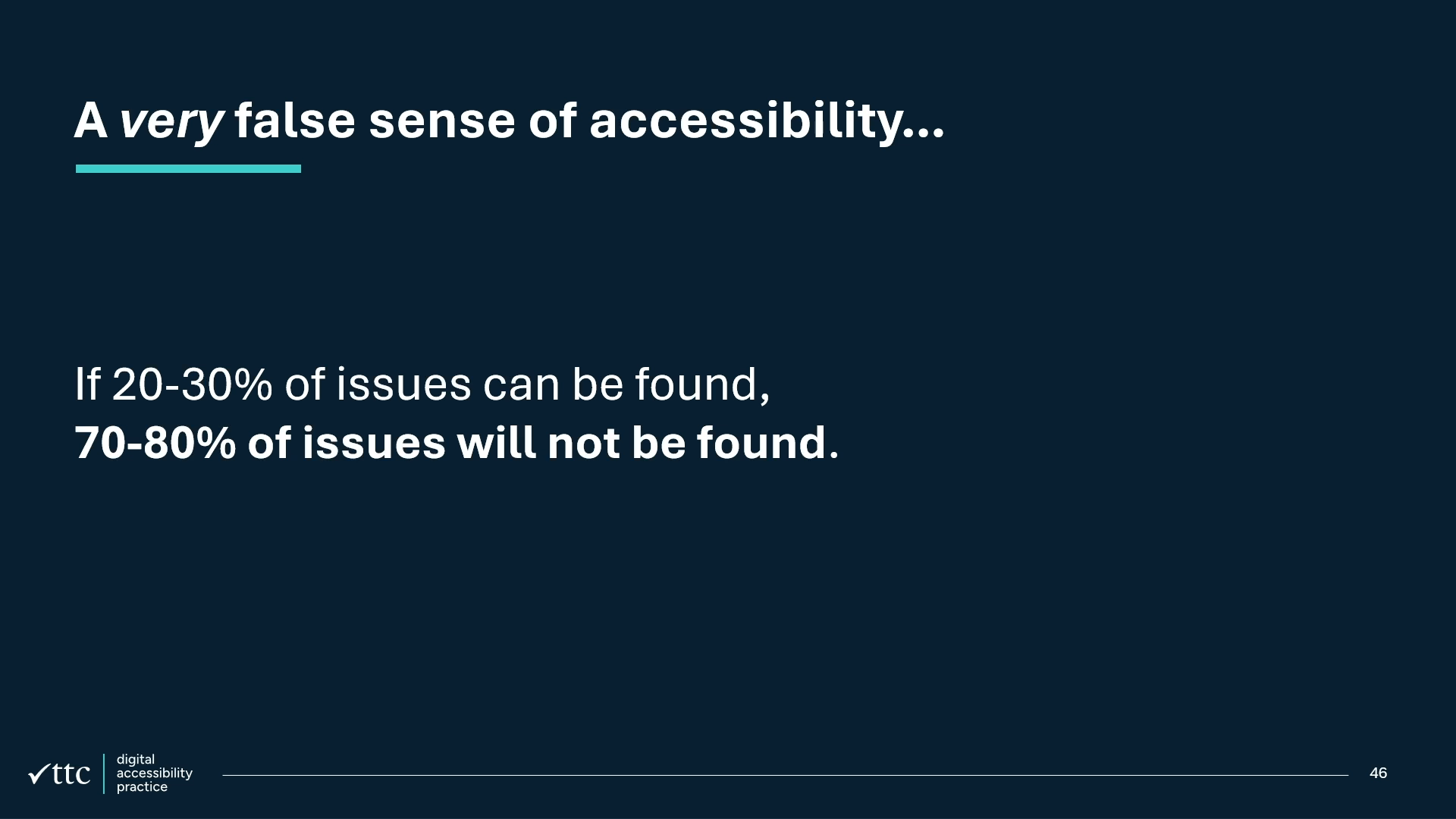
And so just a reminder that if 20 to 30% of issues can be found, then that means 70 to 80% can't be found. And that's if you go by this idea that it's 20 to 30, this number that's been thrown around actually for decades now. The fact is the internet's become a lot more complex. Everything all of you do has become much more complex over 20 to 30 years. And so I don't think that that number is kind of kept up with things.
There's still only a certain amount that automated tools can test for programmatically. So I would say it's possibly even less and probably around 10 to 15% sounds more accurate from my experience. If that's the case, then potentially 85 to 90% of accessibility issues are being missed by automated tools. It's important to have that perspective when you're thinking about using automated tools. They have their advantages, but you need to know what you're getting. Again, some of the strengths would be that you can potentially test a large number of pages at once.
You can have regular scheduled testing and monitoring, baseline your testing, It's a starting point, so it's better than nothing sometimes for some of those tools. It's free and possibly quick and easy, but just a note on better than nothing. I don't think anything great has been created with that approach, so keep that in mind.
But then the weaknesses, as we've probably kind of touched on, obviously the issues that aren't found, but then there's also false positives. There can be a lot of warnings, a lot of alerts, and you have to go through manually and sift through what that all means and which ones you need to fix and which ones you don't need to fix.
They often provide generic resolution advice as well, so it might not be very helpful. It might lead you to implement the wrong remediation for an issue. And oftentimes, if you do accessibility, you try to do accessibility but do it wrong, it can actually create a bigger barrier than you'd have if you did nothing. It identifies issues in isolation, so you might have a component that has lots of pieces within it.
Instead of telling you an overall guide you on how to make that component accessible on a whole basis, it will pick out the five different mini issues within that component actually might not be a very good solution and it could be more work that you need to do that way. That's also worth keeping in mind. You've got missed opportunities to learn from all the issues that you're not getting told about.
Whereas if you get an accessibility audit, you can have a thorough forensic check. And actually get to understand some of these other issues that exist, some of which you might never have heard about. Some of those ones we just looked at before, some of those examples, and you can learn what they are and how to fix them with an audit, whereas you can't do that with an automated tool. And you don't get feedback from people with lived experience either, which is very important to do, not just to meet WCAG or meet guidelines, but actually go beyond the guidelines, WCAG is a foundational standard. If you reach and achieve WCAG, that means your content can be accessed, but it doesn't tell you how easily that can be accessed for people. It might be quite unusable.
So that's important to keep in mind as well, to test with people with disability. And AI, this screen probably looks like it's the start of an entire section, but this is the entire thing. Just better touch on it otherwise, I don't know, you get arrested if you don't touch an AI these days. An AI bot will arrest you or something.
So yeah, the two main aspects for AI related to automated tools, there's potentially how code generation in AI can include accessibility and so far the results haven't been very good with that. I would say accessibility is a little bit behind code generation itself. Because there's not that many experts in accessibility to inform the AI tools how to actually do it properly and not a lot of oversight to correct it either.
And then there's AI getting integrated into these tools as well. And so that work is happening, but I think it's going to take quite a long time before AI is fully integrated into these tools for a proper release of them, because there's a lot that needs to be done. They need to make sure that anything AI does is accurate.
And really what you want from an automated tool is to tell you definitively these things are issues. You don't want it to give you 100 or 1,000 maybes that you have to go and check it to fix the purpose of a quick and easy automated test. So they're things to keep in mind as well. what's So this space around the integration of AI into these testing tools? Also, beware of some of the cowboys out there that might try and say their tool will fix accessibility.
I think there's a lot of people out there who are creating AI to perform all kinds of tasks they might not understand. Accessibility is one of those ones where there's so many people who don't understand it very well that it can be hard to tell who's telling the truth and who's not. That's worth keeping in mind as well.
Look for the known vendors and what they're doing with their AI testing tools. That's the place to look at. So the key takeaways are that automated tools can have their place, but they barely touch the surface of accessibility on your website. So it's important to understand these limitations that I've been talking about. And that testing with an automated tool alone, even if you have zero issues or a perfect score, it doesn't mean your content is accessible. And in fact, if that's all you do for accessibility, the experience is likely to be highly inaccessible.
And so some of the things you can do, build up your own knowledge and skills, try and just do that over time incrementally. You can't learn everything at once. There's a lot to learn, but do a little bit at a time. And so make incremental improvements to the way you work. Even pick out something today that you're working on.
What can you add to that for accessibility and make that the standard way you do that particular thing from now on and then keep adding to that and building on your accessibility skills. Learning basic accessibility testing techniques is important too. We're running a free webinar in a few weeks talking about how to use screen readers, so I'd suggest following me on LinkedIn and come and watch that one, learn a bit more about screen readers and learn how you can use them to test your own work as well. Don't do it alone.
I was a developer for 13 years before becoming an accessibility professional. And I tried to do a lot of it myself. I was the accessibility go-to guy in my teams. And then when I became an accessibility professional, that's when I realized I actually barely knew anything. Still a lot more than everyone else, but that's still barely anything.
It's that iceberg analogy again. Most of what we know is the tip of the iceberg, but there's so much more to understand. So get expert advice as much as you can. There's a great LinkedIn community out there so you can follow people on LinkedIn into accessibility and experts and we're sharing information all the time, so I'd highly recommend that.
We talked about, I talked about an audit earlier, the advantages you get from that, getting a forensic check on what you're doing to see what those issues are that you may not have even been aware of. And as much as you can involve people with disability throughout the process. So just to finish off, just a quote from Tim Berners-Lee, so the father of the World Wide Web, I guess, and pretty much the father of everything we do now.
The World Wide Web is the basis of everything we do. Even the offline apps need to be connected at some point. So, yeah, it's all connected. And so this quote, the power of the web is in its universality, accessed by everyone regardless of disability is an essential aspect. I think he recognized that what a big advancement that the World Wide Web is for people with disability and digital is for disability.
Gone blank now. It's because, yeah, the physical environment has all these different potential barriers and things that we can't control, right? The digital world, we built it, we have complete control over it. And it also limits the potential for things to go wrong because physical world, a lot of things can happen in the environment, but digital, it's all just input and output.
So it's actually the most, probably the most accessible, the biggest advancement in accessibility that humanity has actually created. The reason we probably don't give it enough credit is because the internet is built in little pieces by all of us, all different people. It requires all of us to do our part to make sure that it actually reaches that potential that it can be, to be the biggest enabler for people, no matter who you are, what your ability might be, the biggest equalizer for everyone.
So I'd encourage everyone to have a think about that and try to do little bit by little bit more in accessibility and make the world an easier place to navigate for all people. So with that, thanks very much and enjoy the rest of the conference.
People
- Tim Berners-Lee
Technologies & Tools
- WAVE
- axe DevTools
- Google Lighthouse
- Web crawler
- Code linter
- CMS
- Screen reader
- AI
- Image sprite
- World Wide Web
Standards & Specs
- WCAG
- HTML
- Alt attribute
- CSS
- ARIA
- ARIA label
Concepts & Methods
- Baseline testing
- Pull request
- Informative image
- Decorative image
- Complex image
- Maslow's hierarchy
- Color contrast
- Meaningful sequence
- Focus management
- Modal dialog
- Form validation
- Keyboard accessibility
- Accordion
- Accessibility audit
Organisations & Products
- WebAIM
- Deque
- Chrome